



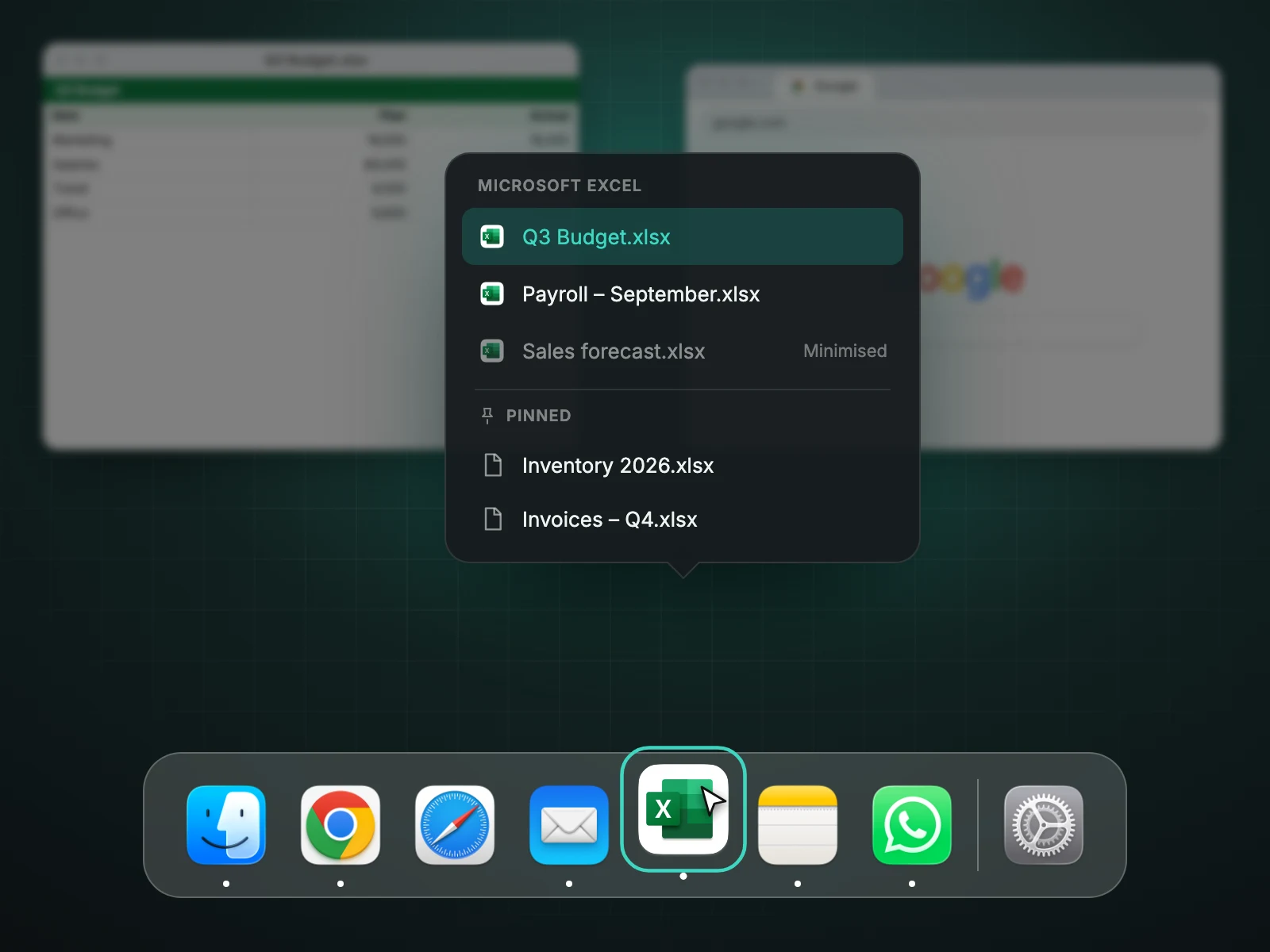
macOS lists an app's windows only when you right-click its Dock icon, and the list can be incomplete. With Casement you hover over the icon and a list of that app's open windows appears by name, minimised ones included; click one to bring it forward. You can also pin files and pages to the list.
What the Dock does by default
Right-clicking an app in the Dock shows recent windows for some apps, and "Show All Windows" starts Mission Control for that app. Neither is a quick, readable list.
With Casement
- Hover over the app's icon.
- The list shows each window's title and any minimised windows.
- Click a name to bring that window forward.
Pinned items
Add the files and pages you open most to the same list, for each app, and separately for each Chrome profile.
A quick tour
- Hover over an app in the Dock for a moment.
- Read the list of window titles. Minimised ones are included.
- Click one. It comes to the front, restoring from the Dock if it was minimised.
Why titles matter
Previews are a good fit for a few windows and hard to read for ten. Titles scale better, and they are what you remember: "Invoice 2041", "Inbox (3)", "Standup notes".
Limits
Windows in full-screen mode or on other Spaces may not appear. Apps with no windows have nothing to show.
Questions people ask
Does it need Screen Recording?
No. It uses window titles and icons, not pictures of the windows.
Try Casement
Casement is a menu-bar app for Mac that puts each Chrome profile in the Dock as its own icon and adds snap layouts, hover-to-focus, a window switcher, Dock window lists, a drop shelf and display controls..