



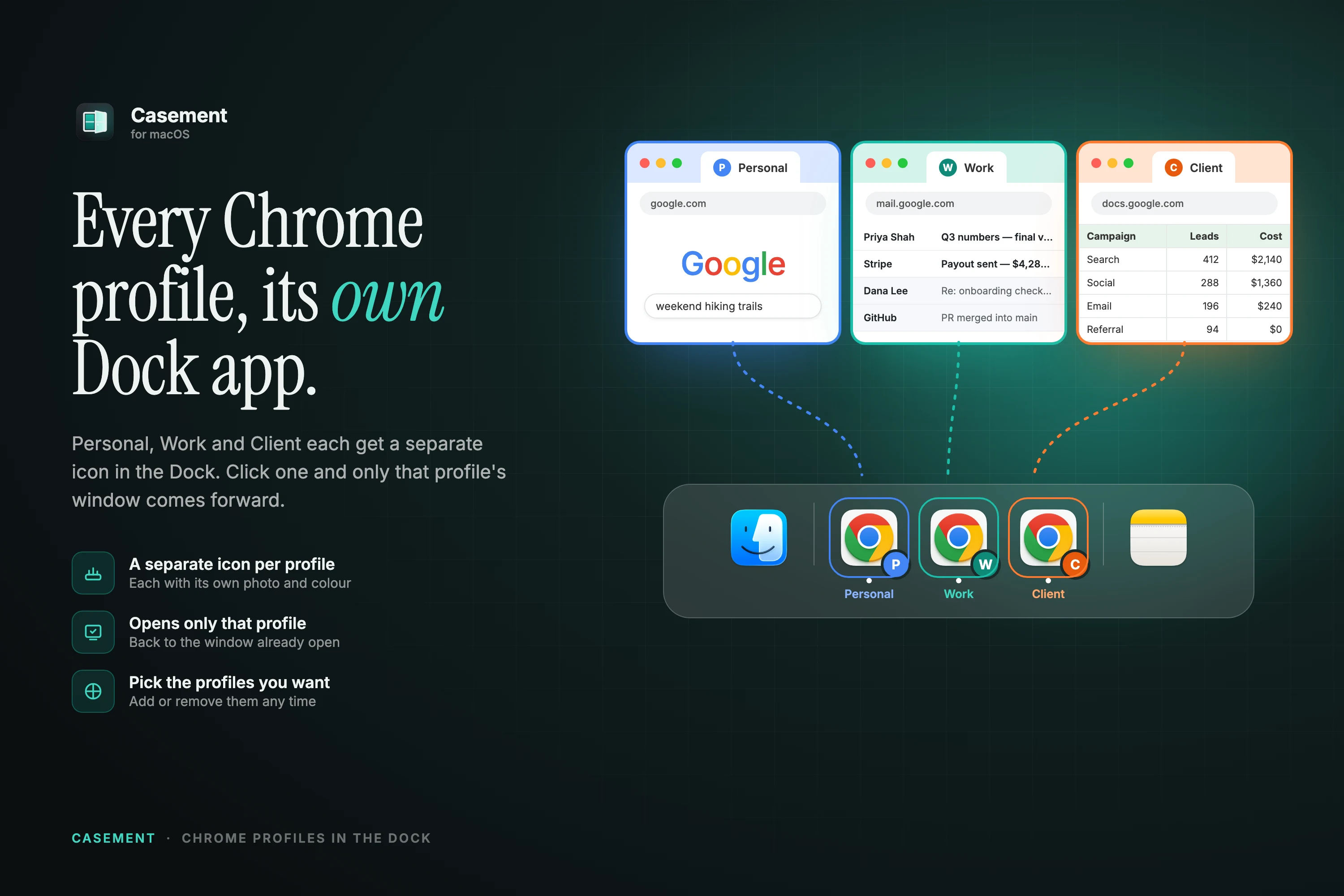
Casement adds one Dock icon per Chrome profile you choose. Clicking an icon brings that profile's existing window to the front; clicking again cycles through its windows. A new window opens only when that profile has none open. It is the only paid part of Casement: $9 once, for up to three Macs, with a 7-day free trial.
The problem it solves
macOS can pin Chrome to the Dock, but the icon knows nothing about profiles. If you use one profile for work, one for home and one per client, you end up clicking the single Chrome icon and then switching profile from inside the browser.
The usual workaround is a small launcher that runs Chrome with a --profile-directory argument. That opens the right profile, but every click is a launch request, and Chrome answers a launch request with a brand-new window. Click four times and you have four windows.
What Casement does instead
- Creates a separate Dock app for each Chrome profile you tick, wearing that profile's photo and colour.
- Brings the profile's existing window forward when you click its icon.
- Cycles through that profile's windows if you click again.
- Opens a new window only when the profile has nothing open.
- Adds and removes the icons in the Dock for you, so there is no dragging.
Your logins, extensions, bookmarks and history stay exactly where Chrome keeps them. Casement does not copy a profile or build a second browser, which is why each icon is small.
Setting it up
- Install Casement and allow Accessibility when the setup screen asks.
- Click the Casement icon in the menu bar and open Chrome profiles.
- Tick the profiles that should have a Dock icon.
- Click an icon. Chrome opens that profile, or returns to it if it is already open.
Which browsers
It works with Google Chrome and its Beta, Dev and Canary builds. Safari has no profile argument and no list of profiles that another app can read, so no tool can do the same for it.
Price and trial
Every other Casement feature is free. Chrome profile Dock icons cost $9 once and cover up to three Macs you use yourself. You can try them for 7 days; when the trial ends the profile icons are removed from the Dock and everything else keeps working. Buying brings them back.
A day with it
Morning: click the Work icon, and the work Chrome window you left open last night returns with its tabs. A client emails; click the Client icon, and you are in that profile's window, signed in as the right account. Click Work again and you are back. At no point did a new window appear unless that profile had none open.
Things to know
- Profile icons use the profile's photo and colour, so changing them in Chrome changes the icon.
- Removing a profile from Casement's list removes its Dock icon, not the profile.
- Click a profile's icon repeatedly to cycle through all of that profile's windows.
- The icons are small launchers, under a megabyte each; they do not copy any browser data.
Questions people ask
Does it need Accessibility permission?
Yes. macOS lets an app find, focus and move other apps' windows only with that permission. Casement does not need Screen Recording and shows no window thumbnails.
Will my Chrome data move or get copied?
No. Profiles stay in Chrome's own folder. Each Dock icon is a tiny launcher that points at the Chrome you already have.
What if I have a lot of profiles?
Tick only the ones you want in the Dock. The rest remain available from Chrome's own profile menu.
Can I use it on two Macs?
Yes. One licence covers up to three Macs you use yourself. Choose Deactivate This Mac to free a seat before moving to a new one.
Try Casement
Casement is a menu-bar app for Mac that puts each Chrome profile in the Dock as its own icon and adds snap layouts, hover-to-focus, a window switcher, Dock window lists, a drop shelf and display controls..