



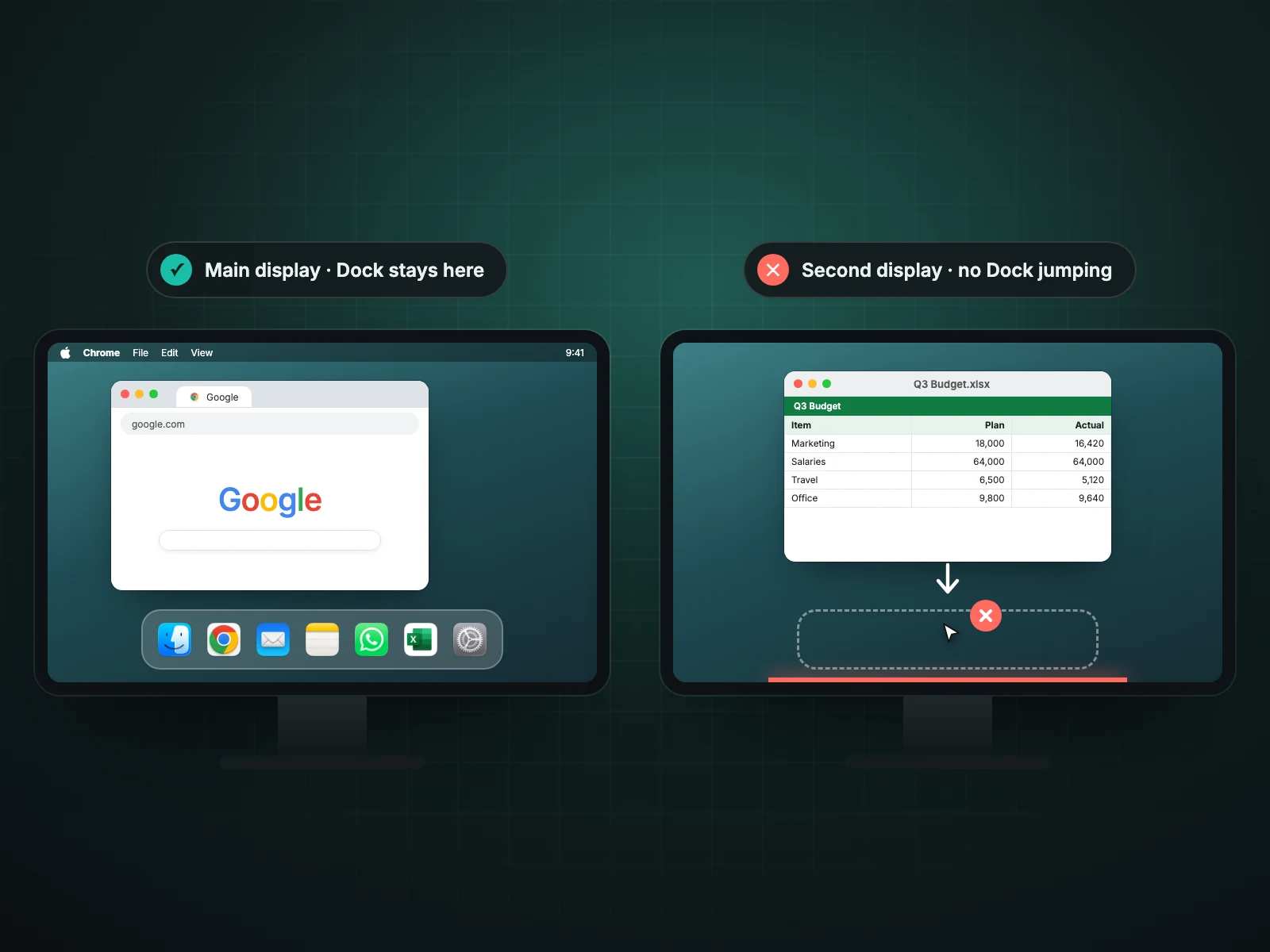
On a Mac with several displays, the Dock follows your pointer to whichever screen it presses against at the bottom edge. Casement can pin the Dock to a display you choose, such as the main one, so it stops jumping. It needs no extra permission and you can switch it back to the default behaviour at any time.
Why the Dock moves
When displays have separate Spaces, which is the default, the Dock lives on one screen at a time and follows your pointer if you hold it against the bottom edge of another. Anyone with a taskbar-style setup on a second monitor will have seen it relocate unexpectedly.
What you can choose
- Keep the Dock on the main display.
- Keep it on any other connected display.
- Leave it following the pointer, as macOS does.
How to set it up
- Click the Casement icon in the menu bar and open the Dock screen section.
- Choose the display the Dock should stay on, for example your main display.
- Test it by moving the pointer against the bottom edge of another screen. The Dock stays where you put it.
Why not just turn off separate Spaces
macOS has a switch, Displays have separate Spaces, which changes how the Dock and menu bar behave across screens. It also changes how full-screen apps work and needs a logout. Casement leaves that setting alone and only controls where the Dock sits.
When it applies
Only when you have more than one display. With a single display there is nothing to choose and the Dock behaves as usual. If you unplug the chosen display the Dock moves to a screen that is still connected.
Questions people ask
Does this need Accessibility or Screen Recording?
No extra permission is needed for this feature.
What happens when the chosen display is unplugged?
The Dock falls back to the normal macOS behaviour on the displays that remain.
Try Casement
Casement is a menu-bar app for Mac that puts each Chrome profile in the Dock as its own icon and adds snap layouts, hover-to-focus, a window switcher, Dock window lists, a drop shelf and display controls..