



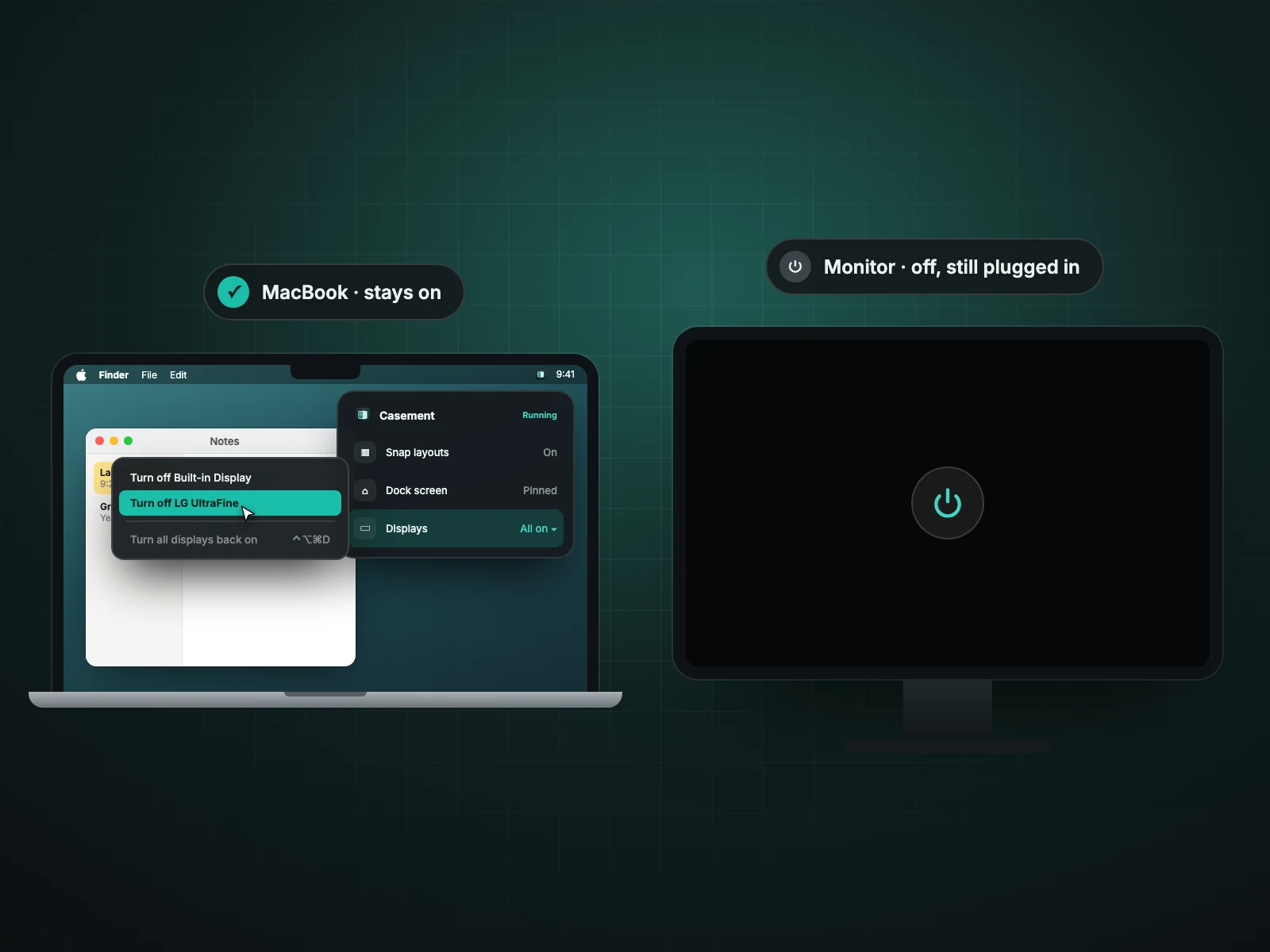
From Casement's control panel you can turn off the MacBook screen or an external monitor while leaving it connected. Windows move to the screens still on. One display always stays on, ⌃⌥⌘D turns every display back on, and Casement asks you to confirm and switches displays back on by itself if you do not.
Safeguards
- One display always stays on, so you cannot lose every screen.
- ⌃⌥⌘D lights every display again.
- A confirmation appears after switching one off; if you do nothing, the display comes back on its own.
Typical uses
- Working on an external monitor with the MacBook's own screen dark.
- Turning off a TV or secondary monitor you are not using without pulling its cable.
- Presenting from one screen while another stays blank.
How it works
- Open Casement's control panel from the menu bar and find the Displays section.
- Choose the display to switch off. If it is the only one on, Casement will not let you.
- Confirm. Windows move onto the screens that remain lit, and a countdown starts for the confirmation.
- To bring it back, press ⌃⌥⌘D or choose it again in the panel.
When it is useful
- A MacBook on a stand with the lid open, working on a larger monitor.
- A shared TV or projector you want blank until it is needed.
- Tidying a desk of several monitors without unplugging cables.
It switches the display off rather than disconnecting it, so the cable stays in and the screen wakes instantly when you ask.
If a screen stays dark
Press ⌃⌥⌘D. If that does not help, unplug and replug the display or sleep and wake the Mac. Casement also restores displays automatically when its confirmation times out.
Questions people ask
Will my windows be lost?
No. They are moved onto the screens that remain on.
What if I switch off the wrong screen?
Press ⌃⌥⌘D, or wait for the confirmation to time out.
Try Casement
Casement is a menu-bar app for Mac that puts each Chrome profile in the Dock as its own icon and adds snap layouts, hover-to-focus, a window switcher, Dock window lists, a drop shelf and display controls..