



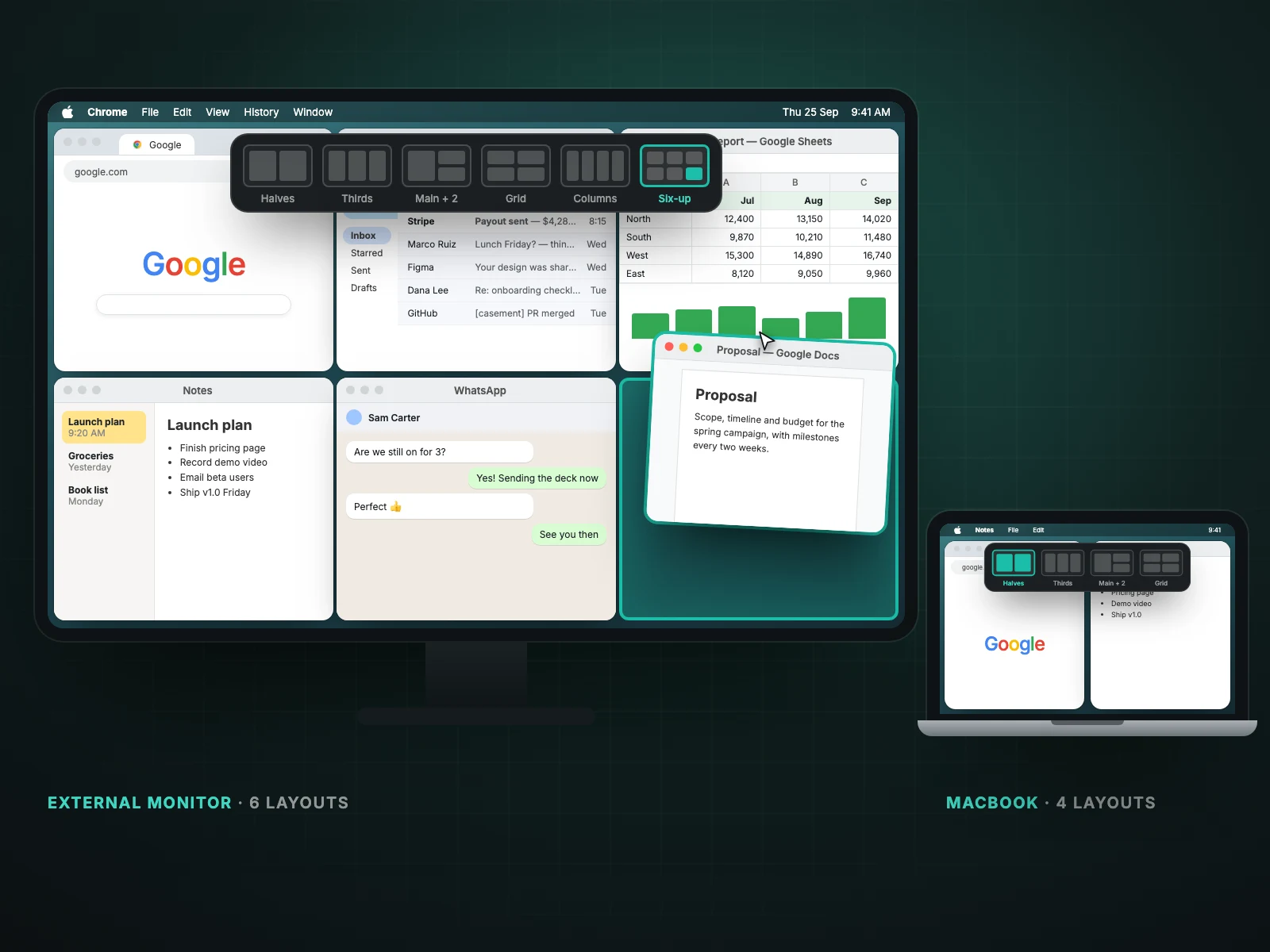
Drag a window toward the top of the screen and Casement shows layouts to drop it into: halves, thirds, one large window with two stacked beside it, and a four-way grid. On a larger external monitor it adds four columns and a six-window grid. It is free and needs only Accessibility permission.
How it works
The picker appears only while you are dragging a window, so it never sits in the way. Hover over a slot to preview where the window will land, then release.
After the first window snaps, Casement offers your other open windows for the empty slots, so one drag can arrange the whole screen.
Layouts included
- Left and right halves
- Three columns (thirds)
- One large window with two stacked beside it
- A four-way grid
- Four columns, on an external monitor
- A six-window grid (three by two), on an external monitor
Four columns and six-up appear only on larger screens, because the slots would be too small on a laptop panel.
Linked resizing
Windows that share an edge resize together. Drag the seam between two snapped windows and both change, the way a tiled layout behaves on other systems.
Keyboard shortcuts
| Shortcut | Does |
|---|---|
| ⌃⌥← / ⌃⌥→ | Left or right half |
| ⌃⌥↑ | Fill the screen |
| ⌃⌥2 ⌃⌥3 ⌃⌥4 | Tile the front 2, 3 or 4 windows |
| ⌃⌥6 | Tile six windows (external monitor) |
Using it with macOS tiling
Recent versions of macOS can also tile when you drag a window to a screen edge. Both respond to the same gesture, so turn off Drag windows to screen edges to tile in System Settings, Desktop & Dock, and let Casement handle it.
A worked example
Say you are writing a report. Drag your editor toward the top of the screen and drop it on the large left slot of the main-plus-two layout. Casement then offers your other open windows for the two stacked slots on the right: put the source spreadsheet in the upper one and the reference PDF in the lower one. Three drags became one gesture, and all three windows are sized to the pixel with no gaps.
If a layout does not appear
- Check that Accessibility is allowed for Casement in System Settings, Privacy & Security, Accessibility.
- Make sure macOS's own Drag windows to screen edges to tile is off, otherwise the two compete.
- Four columns and six-up only show on large external monitors; a laptop panel shows the smaller set.
- Some windows, such as small dialogs and fixed-size panels, cannot be resized and will not accept a layout.
Good to know
Layouts apply per display, so on two monitors you can use thirds on the left screen and halves on the right. Linked resizing only joins windows that really share an edge; a window you moved away afterwards is not affected.
Questions people ask
Is snap layouts free?
Yes. Everything in Casement except Chrome profile Dock icons is free.
Does it work with Stage Manager or full-screen apps?
Layouts apply to ordinary windows on a Space. Full-screen apps live in their own Space and are not tiled.
Can I make my own layouts?
Not at the moment. The set above is built in.
Try Casement
Casement is a menu-bar app for Mac that puts each Chrome profile in the Dock as its own icon and adds snap layouts, hover-to-focus, a window switcher, Dock window lists, a drop shelf and display controls..